Everything You Need to Know

Find answers to common questions about Light HTML Editor, how it works, and how it can benefit your project.

8 KB
gzipped
Zero
dependencies
TypeScript
ready
Plugin
API
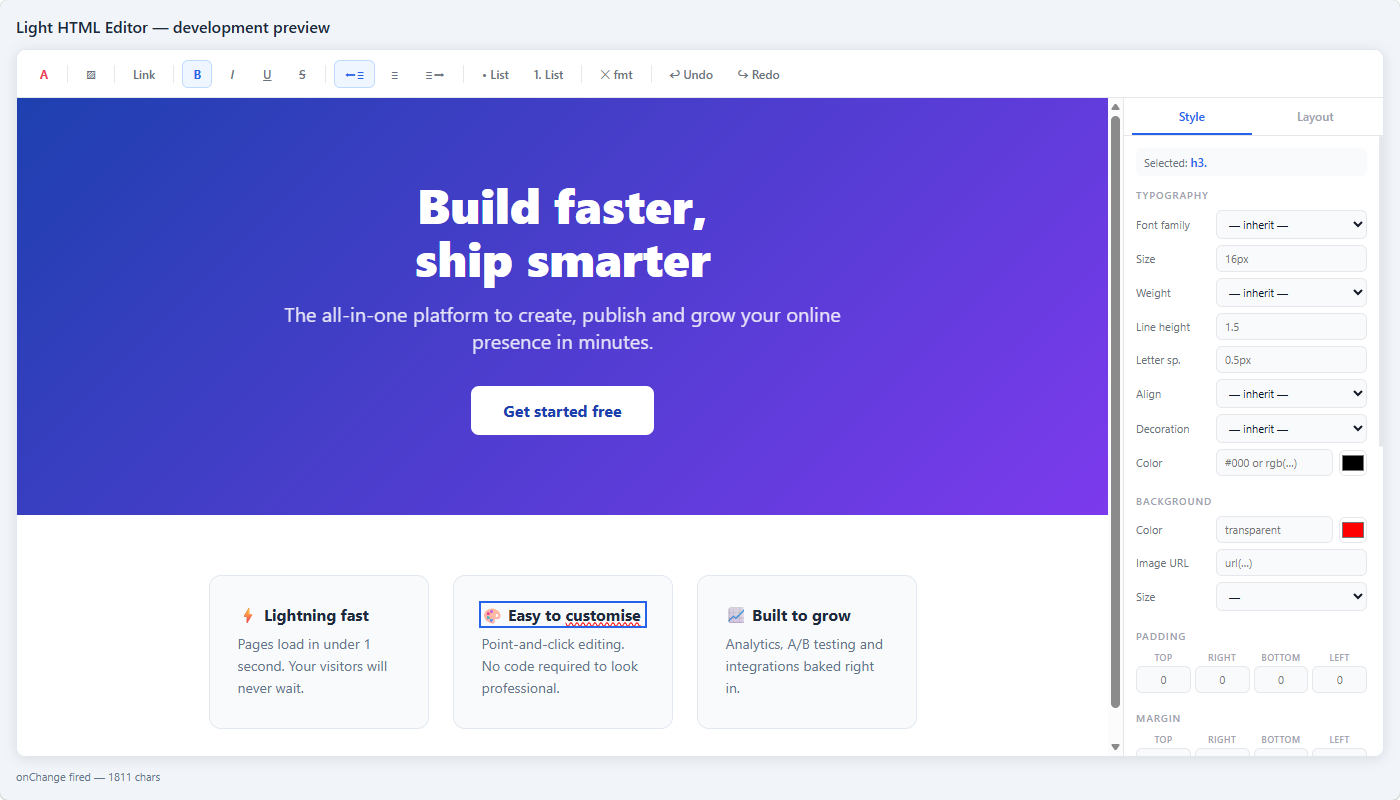
Light HTML Editor Screenshot

Frequently Asked Questions

Your questions about Light HTML Editor, answered

What is Light HTML Editor?

What does Light HTML Editor do?

Light HTML Editor is a lightweight, embeddable WYSIWYG (What You See Is What You Get) editor designed specifically for editing existing HTML pages. You can drop it into any container on your web page, and it allows users to edit text and styles directly within the context of the live page. When a user makes a change, you get the modified HTML back, ready to be saved or processed by your application.

Key takeaway: It edits existing HTML, not build pages from scratch. It's perfect for content management and inline editing.

Who is Light HTML Editor for?

Light HTML Editor is designed for developers and platforms that need to provide a visual editing experience for their users. It's an ideal fit for:

  • No-code / low-code platforms: Provide an inline page editor for your users to customize their sites.
  • Landing page builders: Allow users to tweak text and styles on their landing pages in real-time.
  • Email editors: Create and edit email templates with a visual interface.
  • CMS preview panels: Let editors see and modify content directly within the page preview.

It is not a tool for building pages from scratch with drag-and-drop blocks (for that, consider GrapesJS) or for rich document editing like Google Docs (for that, consider TipTap or ProseMirror).

What makes it "lightweight"?

"Lightweight" refers to both its size and its dependencies:

  • File Size: The core library is only 8 KB when gzipped, making it incredibly fast to load and minimal in its impact on your page's performance.
  • Zero Dependencies: It has no external dependencies. It's built using standard web APIs and doesn't require jQuery, React, Vue, or any other framework to run.
  • Focused Scope: It does one thing—editing existing HTML—and does it exceptionally well, without the bloat of multi-purpose editors.

This makes it incredibly easy to integrate into any project, regardless of its size or complexity.

Getting Started & Usage

How do I start using Light HTML Editor?

Getting started is simple. There are two primary ways to include the editor in your project:

1. Via CDN (Easiest)

Just add this script tag to your HTML file. This method requires no build step.

<script src="https://cdn.jsdelivr.net/npm/light-html-editor/dist/light-html-editor.umd.js"></script>

2. Via NPM (For module-based projects)

If you're using a module bundler like Vite, Webpack, or Rollup, install it as a dependency:

npm install light-html-editor

Then, import it into your JavaScript/TypeScript file:

import { Editor } from 'light-html-editor'

Once included, you can initialize the editor with just a few lines of code.

What's a basic implementation example?

Here is a complete, minimal example of how to set up the editor:

<!-- 1. Create a container for the editor -->
<div id="editor" style="height: 600px;"></div>

<!-- 2. Initialize the editor -->
<script type="module">
import { Editor } from 'light-html-editor'

const editor = Editor.create('#editor', {
  html: `<!DOCTYPE html>
    <html><body>
      <h1>Hello world</h1>
      <p>Edit me!</p>
    </body></html>`,

  onChange(html) {
    // This function is called every time the user makes a change
    console.log('Updated HTML:', html)
  },
})
</script>

The editor will automatically fill the container you provide, so be sure to set its width and height in CSS to control the layout.

How do I handle the updated HTML from the editor?

The editor provides two main ways for you to get the updated HTML content:

1. The `onChange` callback

This is the most common method. You provide a function to the `onChange` option when you create the editor. This function is called (debounced by default) every time the content changes.

Editor.create('#editor', {
  html: '...',
  onChange(html) {
    // Send the HTML to your server or update your application state
    saveToServer(html)
  },
})

2. The `getHtml()` method

You can get the current HTML at any time by calling the `getHtml()` method on the editor instance. This is useful for things like saving on a button click.

const editor = Editor.create('#editor', { ... })

// Later, for example, on a save button click:
const saveButton = document.getElementById('save-button')
saveButton.addEventListener('click', () => {
  const currentHtml = editor.getHtml()
  console.log('Saving this HTML:', currentHtml)
})

Features & Functionality

What editing features are included?

Light HTML Editor comes with a rich set of built-in tools for both text and style editing.

Built-in Toolbar Controls:

  • Text color and highlight (background color) pickers
  • Link insertion, editing, and removal
  • Inline formatting: Bold, Italic, Underline, Strikethrough
  • Text alignment: Left, Center, Right
  • List creation: Bullet lists and Numbered lists
  • Clear formatting button to remove inline styles
  • Undo and Redo functionality

Built-in Style Panel:

The style panel provides comprehensive CSS controls, organized into tabs:

  • Style Tab: Typography (font, size, weight, line-height), Background (color, image), Padding, Margin, Border, Size, and Effects (box-shadow, text-shadow).
  • Layout Tab: Display, Overflow, Position, Flexbox controls (for both parent and child elements).

Users can click on any element on the page to see and modify its styles in this panel.

What is the plugin system and how do I use it?

The plugin system is a powerful feature that allows you to extend the editor's functionality with custom tools. A plugin is a simple JavaScript object with a name and an install function. The install function is called once when the editor is created, giving you access to the editor instance to add new buttons, sections, or logic.

Here's an example of a simple plugin that adds heading buttons:

const headingPlugin = {
  name: 'headings',
  install(editor) {
    // Add buttons to the toolbar
    for (const [tag, label] of [['H1','H1'], ['H2','H2'], ['H3','H3']]) {
      editor.toolbar.addButton({
        id: `heading-${tag}`,
        label,
        title: `Wrap in <${tag}>`,
        onClick() {
          // Use the browser's built-in command to format selection
          document.execCommand('formatBlock', false, tag)
        },
      })
    }
  },
}

// Use the plugin when creating the editor
Editor.create('#editor', {
  html: myHtml,
  plugins: [headingPlugin],
})

This allows you to tailor the editor to your specific needs, adding anything from custom content blocks to specialized formatting tools.
Can I customize the toolbar and style panel?

Yes, you have full programmatic control over both the toolbar and the style panel.

Customizing the Toolbar

You can add or remove buttons from the toolbar at any time using the editor instance:

// Add a custom button
editor.toolbar.addButton({
  id: 'my-custom-btn',
  label: 'Special',
  title: 'Do something special',
  onClick(editor) {
    alert('Special button clicked!')
  },
})

// Remove a button later
editor.toolbar.removeButton('my-custom-btn')

Customizing the Style Panel

You can also add your own custom sections to the style panel, allowing you to build completely custom UIs for controlling your elements:

// Add a custom section to the style panel
editor.stylePanel.addSection({
  id: 'my-controls',
  title: 'My Custom Controls',
  render(editor) {
    // Create your custom HTML for the controls
    const div = document.createElement('div')
    div.innerHTML = '<label>My Setting:</input type="checkbox"></label>'
    return div
  },
  onSelect(el, sectionEl) {
    // This is called when a user clicks an element in the canvas
    // You can update your custom controls here
    const myCheckbox = sectionEl.querySelector('input')
    myCheckbox.checked = el.getAttribute('data-my-setting') === 'true'
  },
})

// Remove a section later
editor.stylePanel.removeSection('my-controls')

Plans & Pricing

What are the pricing plans?

Light HTML Editor is offered with a simple, transparent pricing model to suit different needs:

Free Plan

Perfect for personal projects, small websites, and getting started.

  • Unlimited projects
  • Up to 1,000 active editor instances per month
  • Community support

Pro Plan

Designed for growing businesses and professional applications.

  • Everything in Free
  • Unlimited active editor instances
  • Priority email support
  • Early access to new features and beta releases

For detailed pricing and to choose a plan, please visit our Pricing Page.

Is there a free trial for the Pro plan?

Yes! We offer a 14-day free trial for the Pro plan. No credit card is required to start the trial. You'll have full access to all Pro features during the trial period, allowing you to test the editor with your specific use case and ensure it meets your needs before committing to a subscription.

You can start your free trial directly from your account dashboard after signing up.

Data & Security

How is my data handled and secured?

Data security and privacy are our top priorities. We handle your data with the utmost care:

  • Encryption in Transit: All data transmitted between your application and our servers is encrypted using industry-standard TLS 1.2 or higher.
  • Encryption at Rest: All HTML content and user data stored on our servers is encrypted using strong AES-256 encryption.
  • Access Control: Access to data is strictly limited to authorized personnel who require it for the maintenance and improvement of our service. We conduct regular access reviews.
  • Compliance: We are committed to complying with data protection regulations like GDPR and CCPA.

Please refer to our Privacy Policy for a detailed overview of how we collect, use, and protect your information.

Who owns the content I create with the editor?

You retain full ownership of all content you create, upload, or edit using Light HTML Editor. We do not claim any ownership or rights to your data. The editor is simply a tool to help you build and manage your own content. Our service only processes and stores your data as necessary to provide the editing functionality, and you can export or delete your data at any time.

Support & Community

What kind of support do you offer?

We offer different levels of support depending on your plan:

Free Plan

Pro Plan

  • Everything in the Free plan, plus:
  • Priority email support with a guaranteed response time of 24 hours.
  • Direct access to our support team for technical assistance and troubleshooting.
Where can I find documentation and examples?

We have a dedicated documentation site that covers everything you need to know. You can find it at docs.light-html-editor.apposters.com.

The documentation includes:

  • Getting started guides and tutorials
  • A complete API reference for all methods, options, and events
  • Detailed examples for common use cases
  • Guides for creating custom plugins
  • Best practices and performance tips

Our documentation is constantly updated to reflect new features and improvements.

How can I report a bug or request a feature?

We encourage feedback from our users! The best way to report a bug or request a new feature is to use our feedback form, which you can find in your account dashboard or at light-html-editor.apposters.com/feedback.

When reporting a bug, please provide as much detail as possible, including:

  • Steps to reproduce the issue
  • The expected behavior
  • The actual behavior
  • Your browser and operating system information

For feature requests, tell us what you're trying to achieve, and we'll consider it for future versions of the product.